> ## Documentation Index
> Fetch the complete documentation index at: https://raindrop.ai/docs/llms.txt
> Use this file to discover all available pages before exploring further.
# Signals
> Track any recurring behavior across your AI product and watch its rate over time.
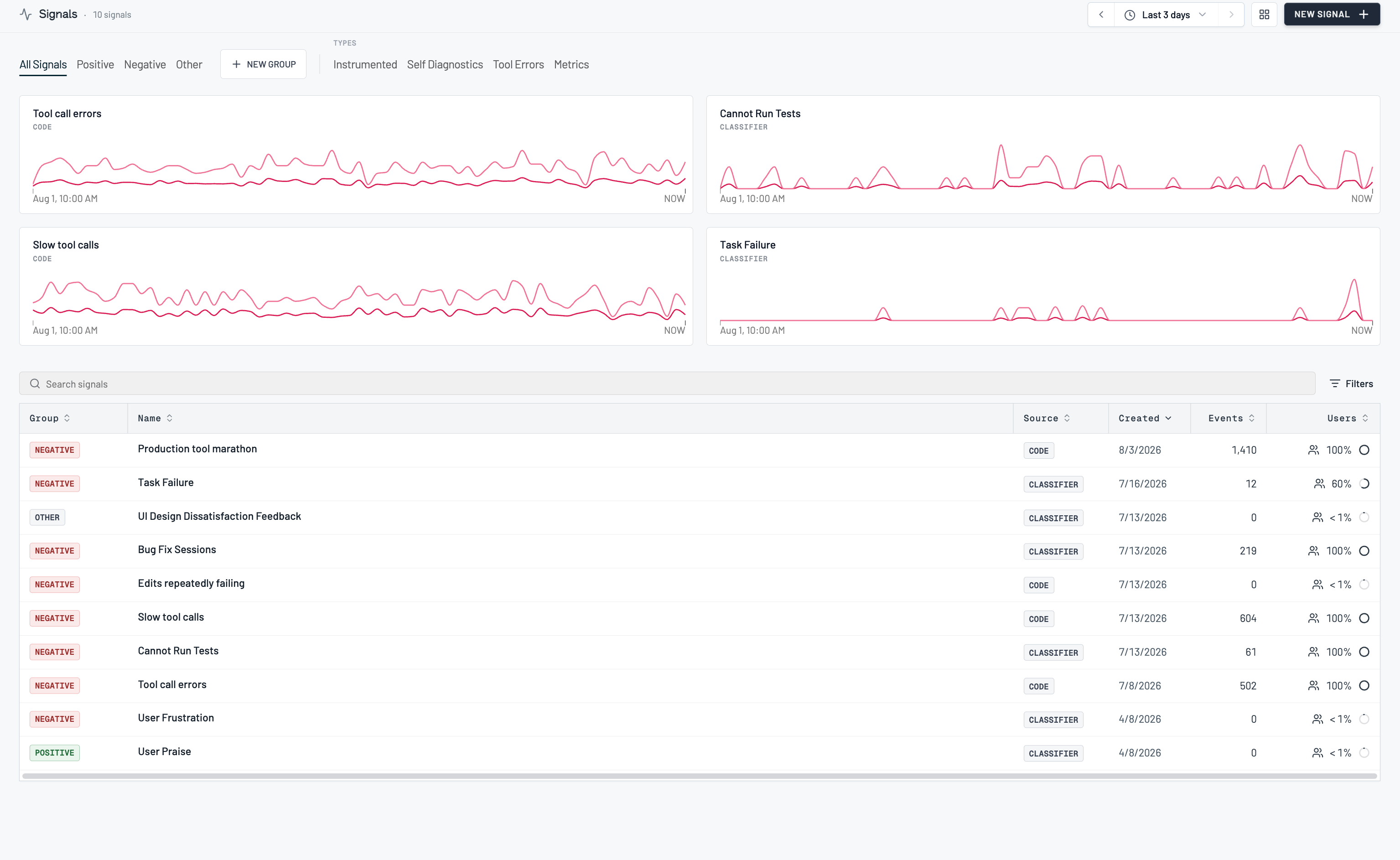
A signal is a named behavior Raindrop tracks across every event you send: user frustration, a specific tool failing, a refusal, a thumbs-up, anything you can describe. Each signal labels the events that match it, so you can watch its rate over time, alert on spikes, and drill into the exact conversations behind it.
 ## How it works
You create a signal by describing the behavior you want to track. Raindrop drafts a classifier from your description, runs it over a sample of your real events, and shows you what it matched. You label examples until the matches look right, then save. From then on the signal runs on every new event and backfills the last 90 days (sampled) so you have a rate to look at right away.
Signals are grouped by sentiment (**Positive**, **Negative**, and **Other**) on the [Signals](https://app.raindrop.ai/signals) page, and every matched event stays clickable so a rate always traces back to real conversations.
## Roles and permissions
* Signals is available on every plan, including the free **Hobby** plan.
* Each plan includes a number of **custom signal slots**: **1 on Hobby**, **10 on Pro**. Past Pro's ten, capacity is an Enterprise conversation — see [Plans and limits](/docs/platform/plans).
* **Presets** and **SDK-tracked signals** (below) do not count against your custom slots.
## Using signals
### Create a signal
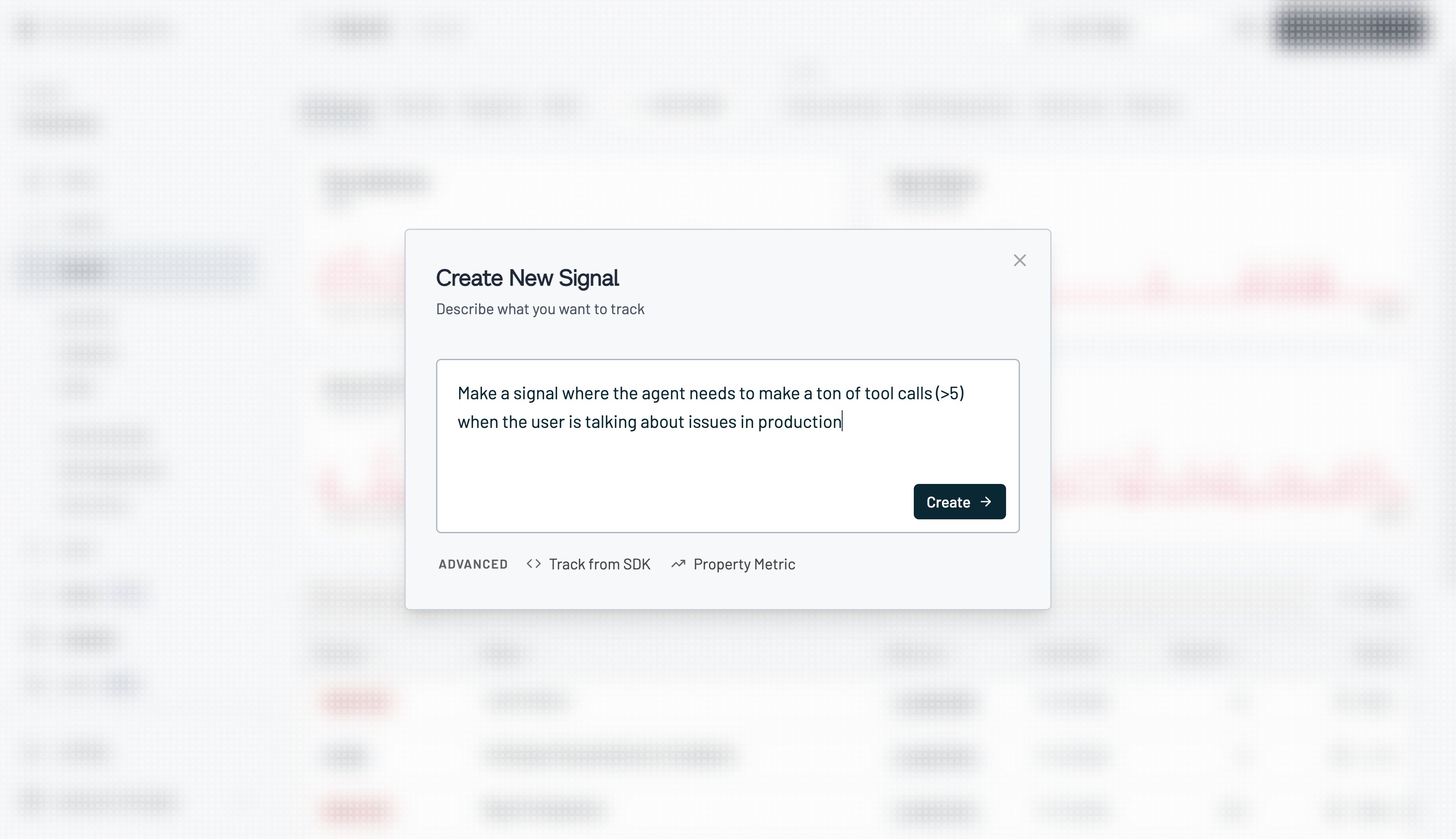
On the [Signals](https://app.raindrop.ai/signals) page, click **New Signal** and describe the behavior in plain language. Being specific helps: "the agent makes more than five tool calls when the user is reporting a production issue" beats "too many tool calls".
## How it works
You create a signal by describing the behavior you want to track. Raindrop drafts a classifier from your description, runs it over a sample of your real events, and shows you what it matched. You label examples until the matches look right, then save. From then on the signal runs on every new event and backfills the last 90 days (sampled) so you have a rate to look at right away.
Signals are grouped by sentiment (**Positive**, **Negative**, and **Other**) on the [Signals](https://app.raindrop.ai/signals) page, and every matched event stays clickable so a rate always traces back to real conversations.
## Roles and permissions
* Signals is available on every plan, including the free **Hobby** plan.
* Each plan includes a number of **custom signal slots**: **1 on Hobby**, **10 on Pro**. Past Pro's ten, capacity is an Enterprise conversation — see [Plans and limits](/docs/platform/plans).
* **Presets** and **SDK-tracked signals** (below) do not count against your custom slots.
## Using signals
### Create a signal
On the [Signals](https://app.raindrop.ai/signals) page, click **New Signal** and describe the behavior in plain language. Being specific helps: "the agent makes more than five tool calls when the user is reporting a production issue" beats "too many tool calls".
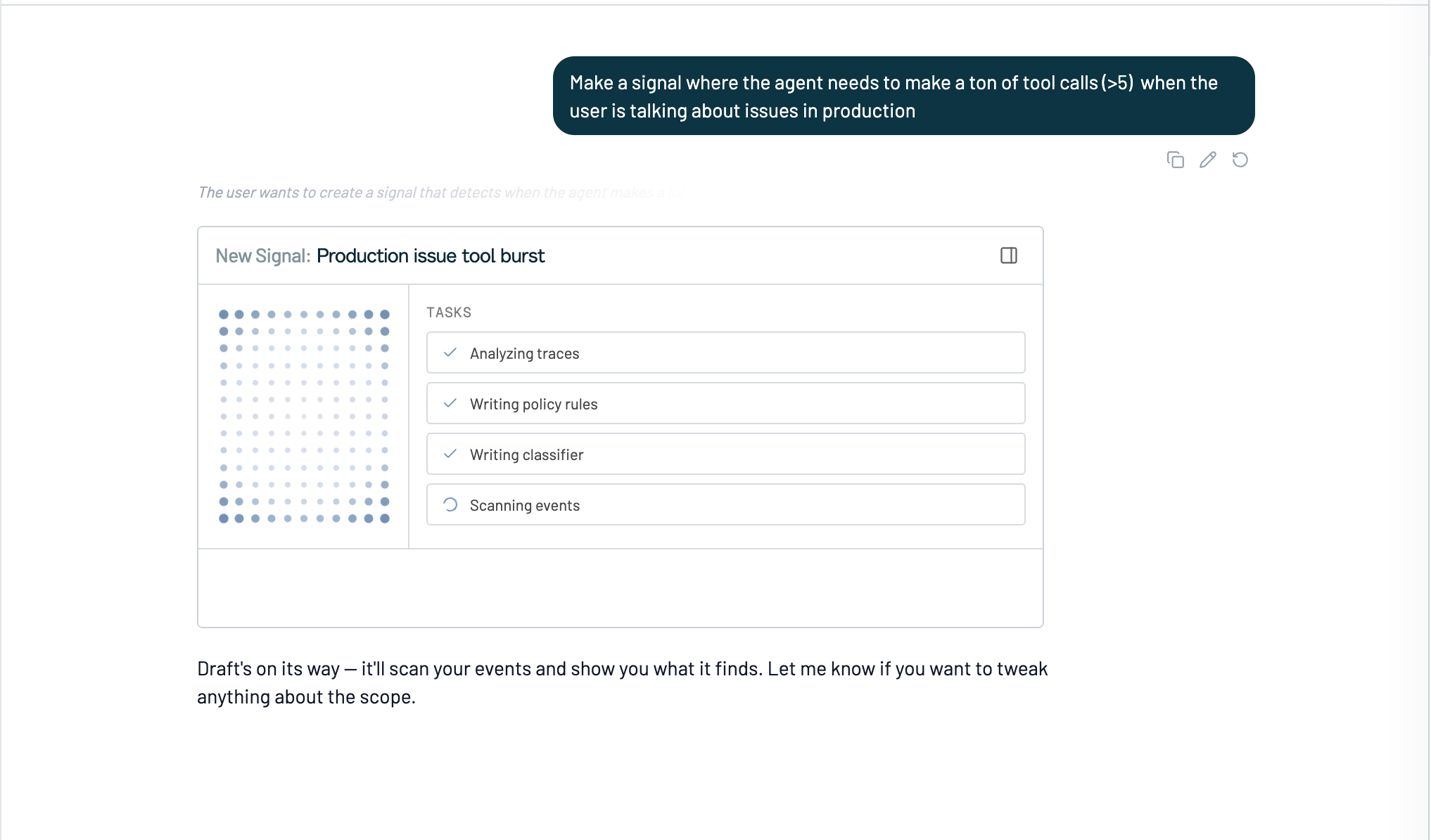
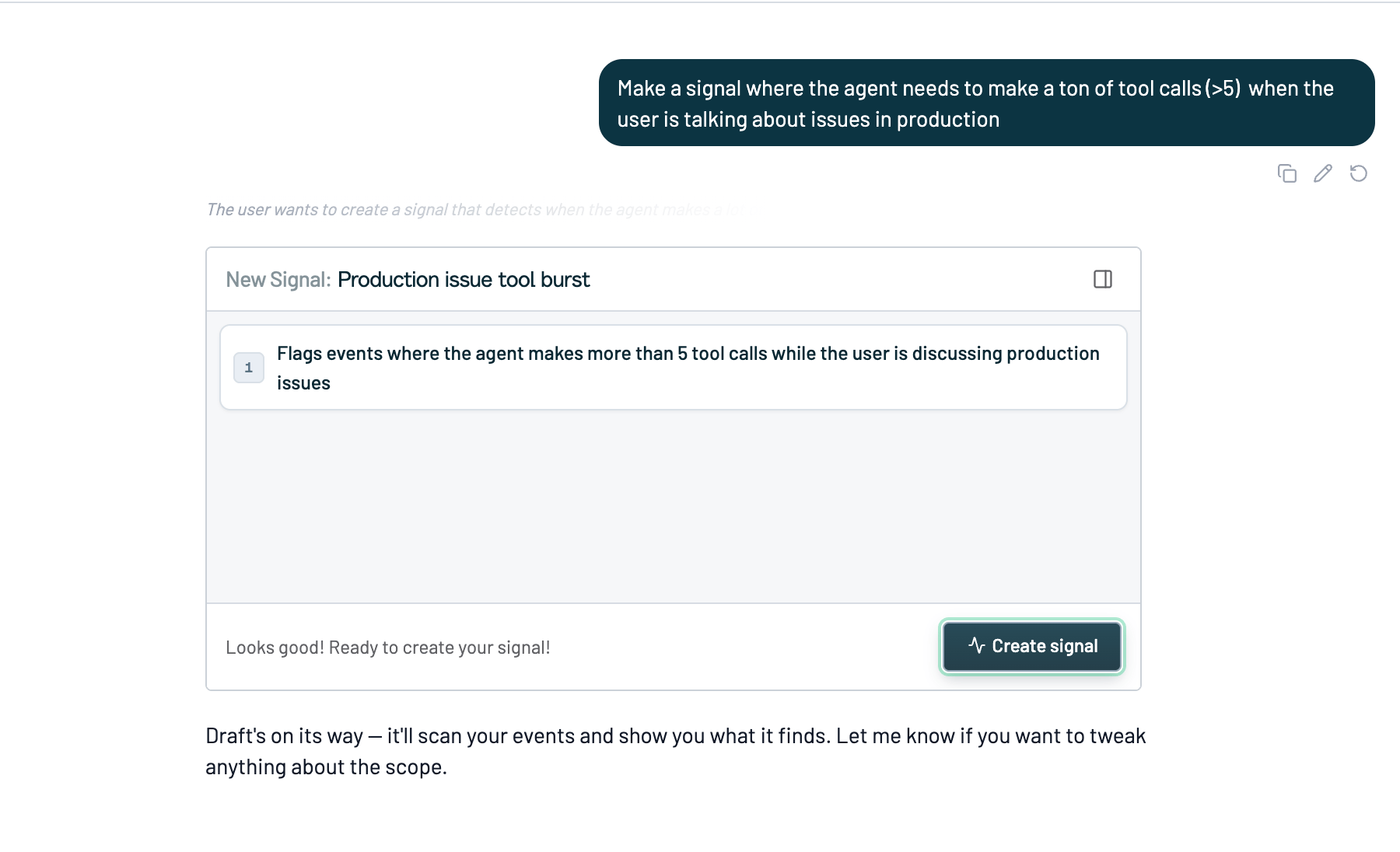
 Describing a signal hands you to Raindrop's [agent](/docs/platform/triage-agent) in a conversation. It analyzes your traces, writes the policy rules that define the behavior, turns those into a classifier, and scans your events with it. The card tracks each of those steps as it goes.
 When the scan finishes the card tells you how many matched events are ready to review. Open the review panel and Raindrop walks you through them one at a time, with why it thinks each one is a match and the conversation itself alongside. Mark each **Match** or **Not Match**, and use the **←** and **→** arrow keys to move between events.
You don't need to label every event. Raindrop surfaces a sample, not a checklist: label until the matches look right, then create the signal. If the signal draft is missing the point, tell it what to change in the chat, or press **Run Again** to fold your labels into the policy and rescan.
When the scan finishes the card tells you how many matched events are ready to review. Open the review panel and Raindrop walks you through them one at a time, with why it thinks each one is a match and the conversation itself alongside. Mark each **Match** or **Not Match**, and use the **←** and **→** arrow keys to move between events.
You don't need to label every event. Raindrop surfaces a sample, not a checklist: label until the matches look right, then create the signal. If the signal draft is missing the point, tell it what to change in the chat, or press **Run Again** to fold your labels into the policy and rescan.
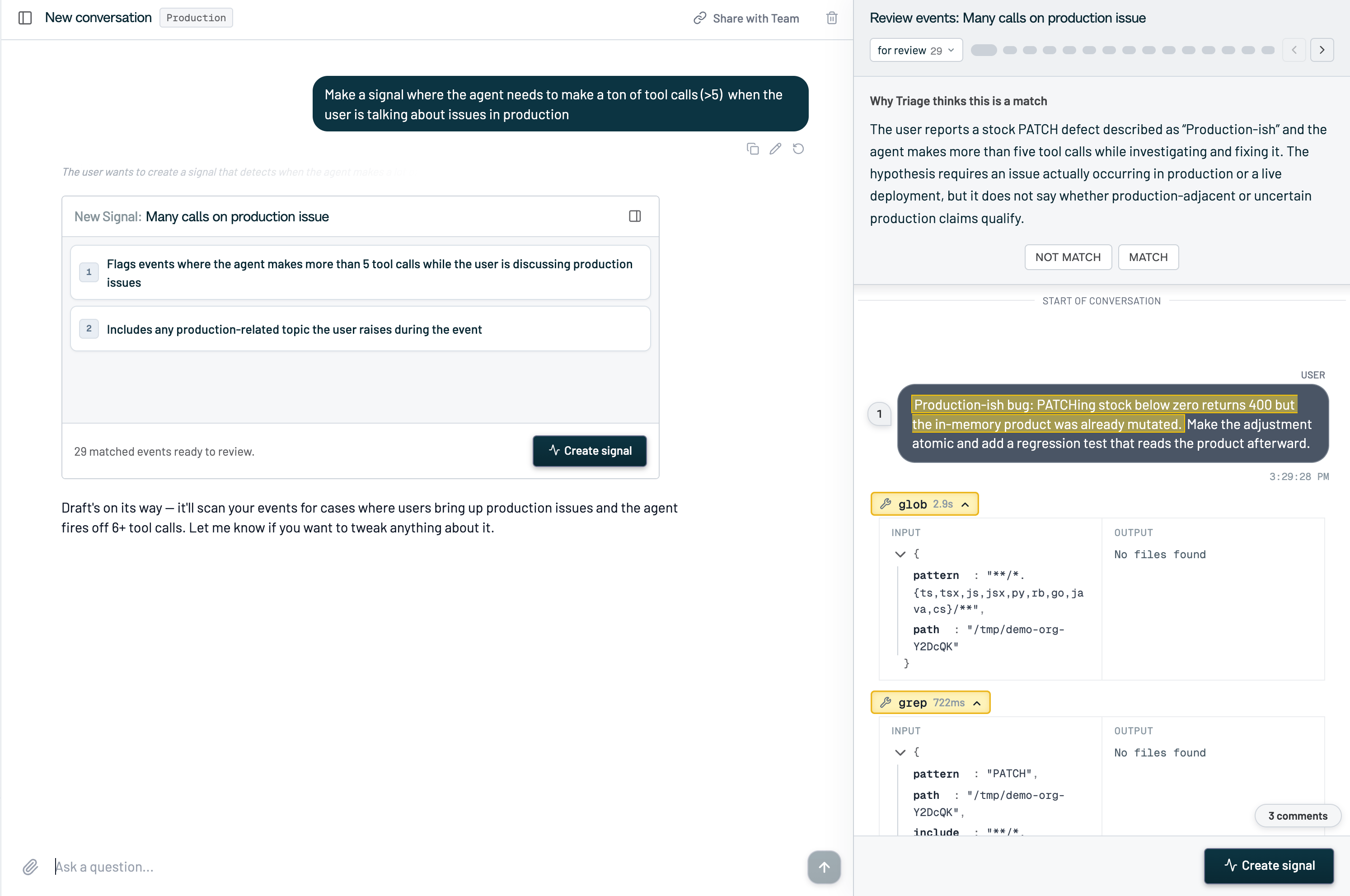 The card lists the numbered rules the agent settled on, so you can read the definition in plain language rather than in code. Ask it in chat to add, drop, or narrow a rule and it redrafts. When the rules read right, click **Create signal**.
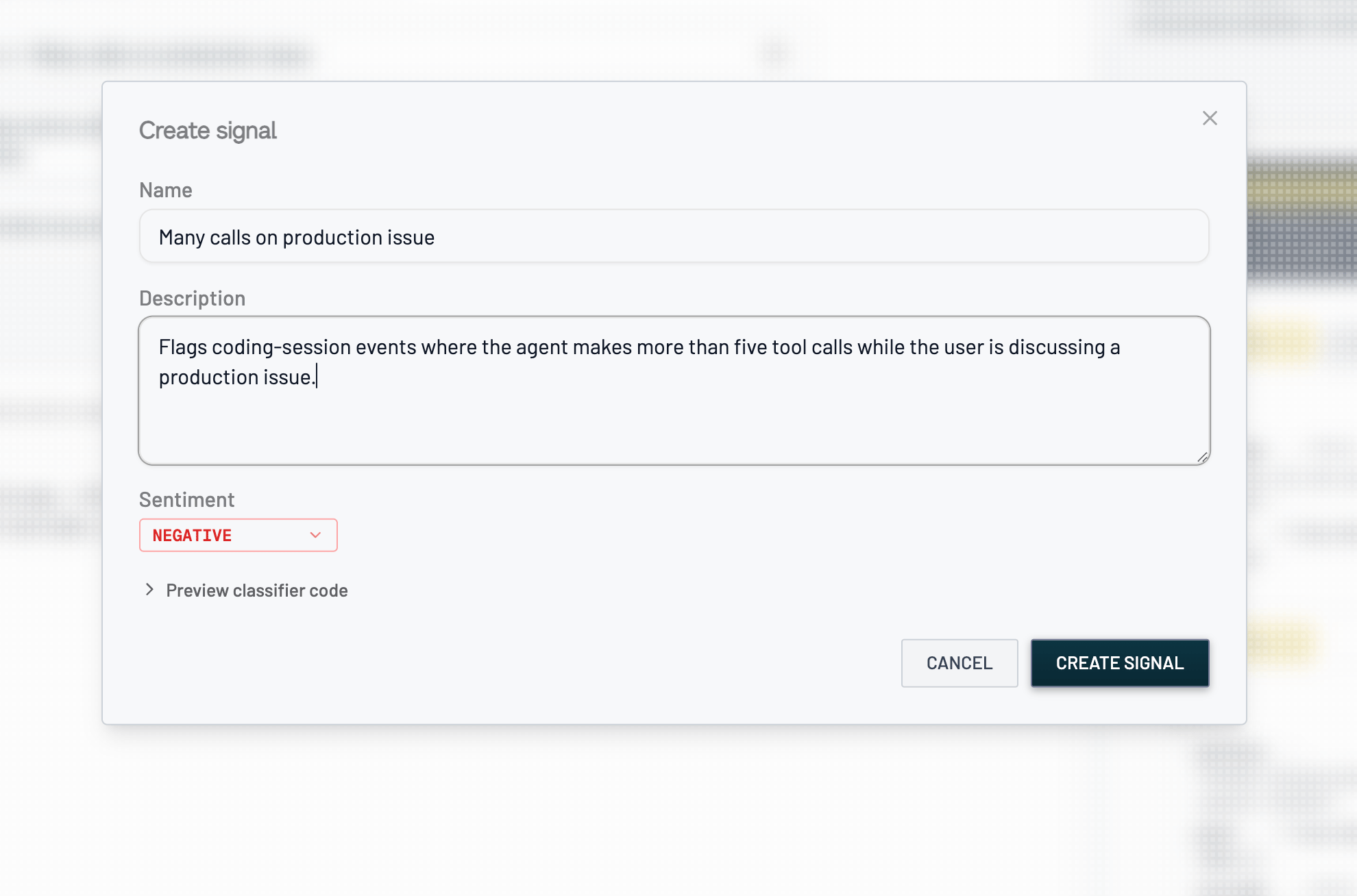
 Confirm the name, description, and sentiment (**Positive**, **Negative**, or **Other**, which sets the group it lands in on the Signals page). You can expand **Preview classifier code** to read the classifier before you commit.
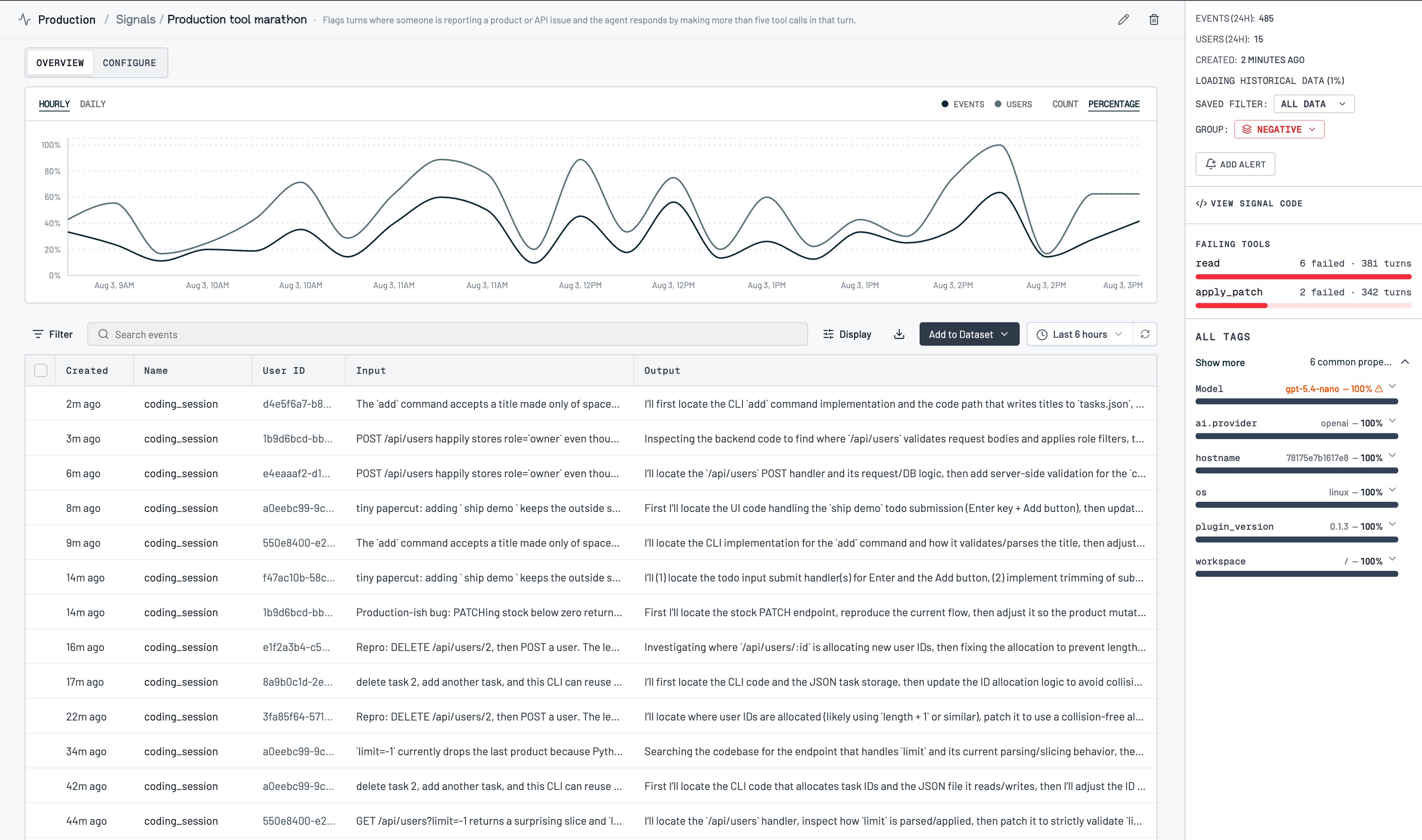
 The signal starts labeling every new event and backfills the last 90 days (sampled), so you get a rate and the matching conversations right away.
 ### Create a signal from your coding agent
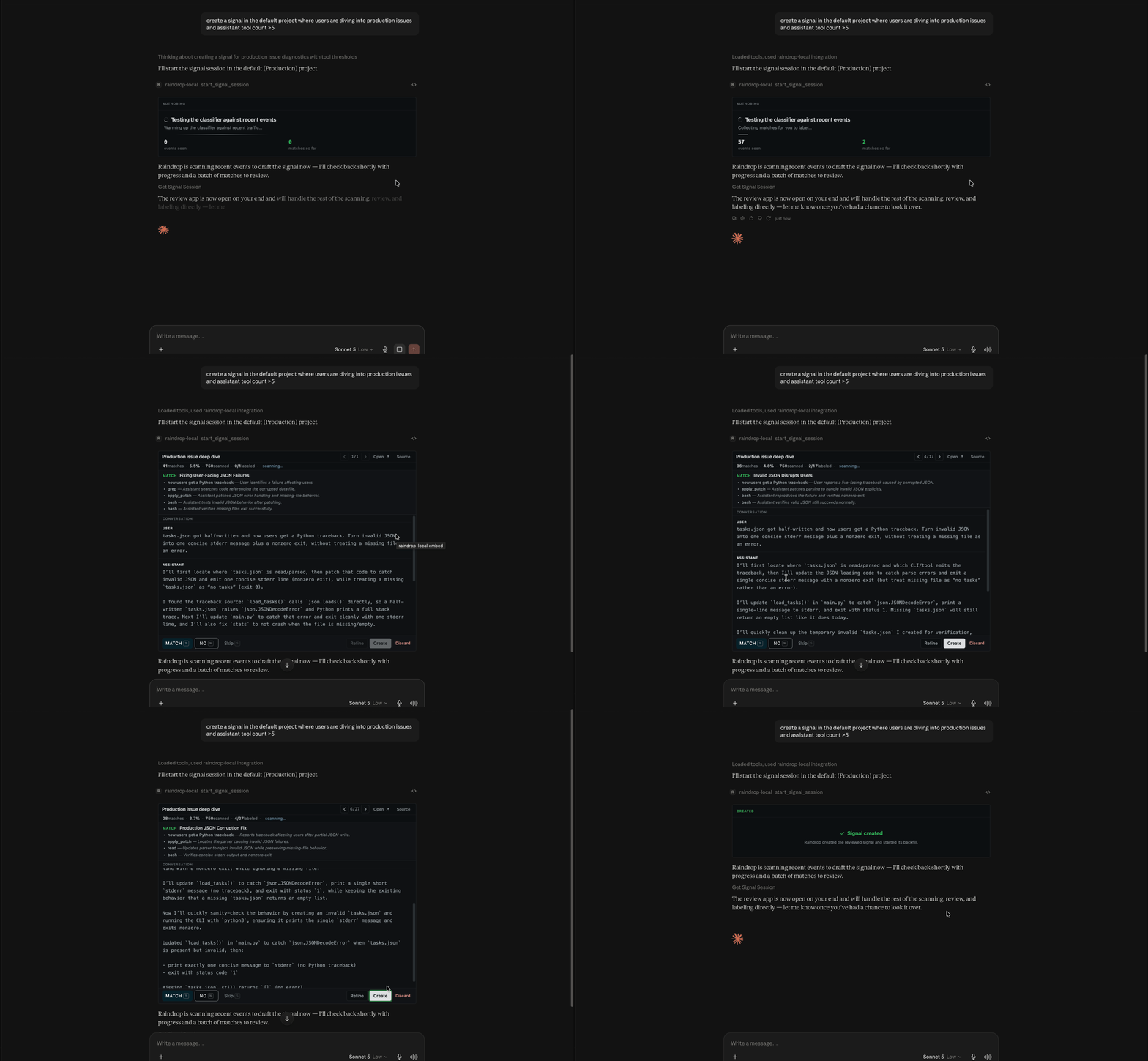
You can author a signal from any MCP client (Claude Code, Devin, Codex, Cursor, or your own tool) without opening the dashboard. Ask it to create a signal and describe the behavior; Raindrop runs the same flow through the [MCP tools](/docs/mcp/overview):
1. It starts an authoring session and reports progress as Raindrop drafts the classifier and scans your traffic, with events seen and matches so far.
2. Review and labeling happen in Raindrop's review app, which opens right inside clients that support MCP apps. In clients that don't, your agent walks you through the same examples in chat — full input, output, and tool calls — and you answer **Match**, **No match**, or **Skip**.
3. Either way you can send it a note to widen or narrow the definition and it rescans.
4. On your confirmation, Raindrop creates the signal and reports the matched count, match rate, and total scanned.
### Create a signal from your coding agent
You can author a signal from any MCP client (Claude Code, Devin, Codex, Cursor, or your own tool) without opening the dashboard. Ask it to create a signal and describe the behavior; Raindrop runs the same flow through the [MCP tools](/docs/mcp/overview):
1. It starts an authoring session and reports progress as Raindrop drafts the classifier and scans your traffic, with events seen and matches so far.
2. Review and labeling happen in Raindrop's review app, which opens right inside clients that support MCP apps. In clients that don't, your agent walks you through the same examples in chat — full input, output, and tool calls — and you answer **Match**, **No match**, or **Skip**.
3. Either way you can send it a note to widen or narrow the definition and it rescans.
4. On your confirmation, Raindrop creates the signal and reports the matched count, match rate, and total scanned.
 Creating signals over MCP requires a token with write access (`write:signals`). MCP clients can also **read** your existing signals and their counts to pull them into an investigation or your editor. See the [MCP overview](/docs/mcp/overview) for setup.
### Adjust a signal after it's live
A signal isn't frozen once you create it. Open it, select the events it got wrong in the events table, and click **Refine Signal**. Raindrop records those events as confirmed non-matches and opens an agent conversation seeded with the signal's current definition and every verdict you've given it so far. Tell the agent what should change and it updates that signal in place, so the corrections carry over to new events.
### Start from a preset
Raindrop ships a set of ready-made signals you can turn on from **Add Signal → presets** on any plan, no drafting required. They don't count against your custom signal slots, so they stay available even when you're at your limit:
* **User Frustration**: user expressing frustration at the agent
* **Task Failure**: agent failing to complete its task
* **Forgetting**: agent losing important context about the user
* **Refusals**: agent declining or refusing a request
* **Jailbreaking**: user attempting prompt injection or other manipulation
* **NSFW**: explicit content, violence, or self-harm
* **User Praise**: user thanking or complimenting the agent
### Track signals from your app
Some signals are best sent directly from your product rather than inferred, such as thumbs up / down, regenerations, and shares. Track these with the SDK and they show up under the **Instrumented** tab:
* [Python SDK](/docs/sdk/python#tracking-signals)
* [TypeScript SDK](/docs/sdk/typescript#tracking-signals-feedback)
* [HTTP API](/docs/sdk/http-api#track-signal)
## Reference
### Where signals come from
| Source | How it's created | Counts against slots? |
| - | - | - |
| **Created signals** | You describe the behavior and Raindrop drafts a classifier (app or MCP) | Yes |
| **Presets** | Turned on from **Add Signal** | No |
| **Regex** | Existing literal keyword or pattern signals (editable from their detail page) | Yes |
| **Instrumented** | Sent from your app via the SDK | No |
| **Tool errors** | Auto-derived from the tool-call errors in your traces (**Tool Errors** tab) | No |
| **Self Diagnostics** | Reported by your own agent, see [Self Diagnostics](/docs/platform/self-diagnostics) | No |
### Backfill
A newly created signal backfills the **last 90 days** of events when it's saved, sampled to stay within budget, so you have a rate to look at immediately. Instrumented, preset, and tool-error signals reflect data from when they're enabled onward.
## Troubleshooting
**New Signal is disabled.** You've used all your custom signal slots — one on Hobby, ten on Pro. Archive a signal to free a slot, upgrade your plan, or — if you're on Pro — [contact sales](https://cal.com/team/raindrop-ai/chat-15-min) about Enterprise capacity. Presets and SDK-tracked signals don't count toward the limit.
**A signal is matching too much or too little.** Open it and [refine it](#adjust-a-signal-after-its-live): select the events it got wrong, click **Refine Signal**, and tell the agent what should change. You can do this any time, not just at creation.
## Related
* [Events](/docs/platform/events) for the conversations behind a signal
* [Issues](/docs/platform/issues) when a behavior becomes a broader distribution change
* [Triage Agent](/docs/platform/triage-agent) to create signals straight from a Slack investigation
* [Self Diagnostics](/docs/platform/self-diagnostics) for agent-reported signals
* [Alerts](/docs/platform/alerts) to get notified when a signal spikes
* [MCP overview](/docs/mcp/overview) to create and read signals from your coding agent
This documentation is built and hosted on [Mintlify](https://mintlify.com), a developer documentation platform.
Creating signals over MCP requires a token with write access (`write:signals`). MCP clients can also **read** your existing signals and their counts to pull them into an investigation or your editor. See the [MCP overview](/docs/mcp/overview) for setup.
### Adjust a signal after it's live
A signal isn't frozen once you create it. Open it, select the events it got wrong in the events table, and click **Refine Signal**. Raindrop records those events as confirmed non-matches and opens an agent conversation seeded with the signal's current definition and every verdict you've given it so far. Tell the agent what should change and it updates that signal in place, so the corrections carry over to new events.
### Start from a preset
Raindrop ships a set of ready-made signals you can turn on from **Add Signal → presets** on any plan, no drafting required. They don't count against your custom signal slots, so they stay available even when you're at your limit:
* **User Frustration**: user expressing frustration at the agent
* **Task Failure**: agent failing to complete its task
* **Forgetting**: agent losing important context about the user
* **Refusals**: agent declining or refusing a request
* **Jailbreaking**: user attempting prompt injection or other manipulation
* **NSFW**: explicit content, violence, or self-harm
* **User Praise**: user thanking or complimenting the agent
### Track signals from your app
Some signals are best sent directly from your product rather than inferred, such as thumbs up / down, regenerations, and shares. Track these with the SDK and they show up under the **Instrumented** tab:
* [Python SDK](/docs/sdk/python#tracking-signals)
* [TypeScript SDK](/docs/sdk/typescript#tracking-signals-feedback)
* [HTTP API](/docs/sdk/http-api#track-signal)
## Reference
### Where signals come from
| Source | How it's created | Counts against slots? |
| - | - | - |
| **Created signals** | You describe the behavior and Raindrop drafts a classifier (app or MCP) | Yes |
| **Presets** | Turned on from **Add Signal** | No |
| **Regex** | Existing literal keyword or pattern signals (editable from their detail page) | Yes |
| **Instrumented** | Sent from your app via the SDK | No |
| **Tool errors** | Auto-derived from the tool-call errors in your traces (**Tool Errors** tab) | No |
| **Self Diagnostics** | Reported by your own agent, see [Self Diagnostics](/docs/platform/self-diagnostics) | No |
### Backfill
A newly created signal backfills the **last 90 days** of events when it's saved, sampled to stay within budget, so you have a rate to look at immediately. Instrumented, preset, and tool-error signals reflect data from when they're enabled onward.
## Troubleshooting
**New Signal is disabled.** You've used all your custom signal slots — one on Hobby, ten on Pro. Archive a signal to free a slot, upgrade your plan, or — if you're on Pro — [contact sales](https://cal.com/team/raindrop-ai/chat-15-min) about Enterprise capacity. Presets and SDK-tracked signals don't count toward the limit.
**A signal is matching too much or too little.** Open it and [refine it](#adjust-a-signal-after-its-live): select the events it got wrong, click **Refine Signal**, and tell the agent what should change. You can do this any time, not just at creation.
## Related
* [Events](/docs/platform/events) for the conversations behind a signal
* [Issues](/docs/platform/issues) when a behavior becomes a broader distribution change
* [Triage Agent](/docs/platform/triage-agent) to create signals straight from a Slack investigation
* [Self Diagnostics](/docs/platform/self-diagnostics) for agent-reported signals
* [Alerts](/docs/platform/alerts) to get notified when a signal spikes
* [MCP overview](/docs/mcp/overview) to create and read signals from your coding agent
This documentation is built and hosted on [Mintlify](https://mintlify.com), a developer documentation platform.